Guides
Set up, assess, review, release - a guided walkthrough
Seven steps from an empty account to a signed-off result in a respondent’s hands - with the real screens, so you can read it through first or work along beside it.
The “open” links go straight to that screen inside your account. If you are not signed in yet, you will be asked to log in first.
- 01
Create your first assessment
Start with a title and a short description, then build out the questions. An assessment stays a draft until you publish it - nothing is reachable by a respondent while you are still working.
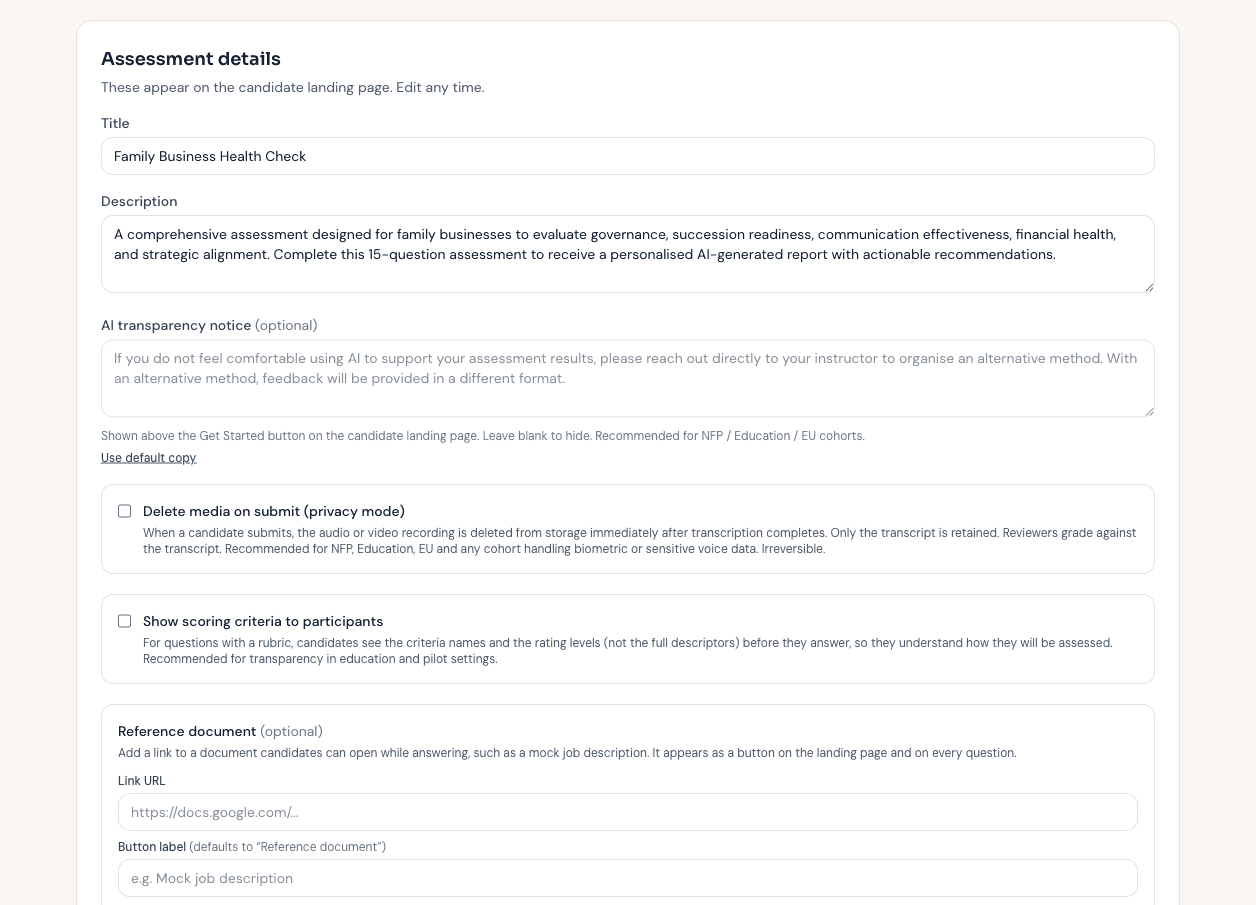
- Twenty-six question types, including long-form written answers, file uploads, and video or audio responses that are transcribed automatically.
- Give the AI your context and methodology in the Settings panel - that is what it evaluates against, alongside your rubric.
- Optional open and close dates, and time limits per assessment or per question - enforced on the server, not just in the browser.
Video walkthrough in production - each section gets its embed as the recording lands.
- 02
Build a rubric and set weighting
The rubric turns a written answer into a defensible score. You define the criteria and performance levels; the AI places each answer against them and quotes the evidence it used.
- Up to ten criteria, each with up to six performance levels written in your own language.
- Weight each criterion so the things that matter most carry the most score - weights reach the final arithmetic.
- The AI is never asked whether an answer is good. It is asked where the answer sits against your levels, and it returns the quote that put it there.
Video walkthrough in production - each section gets its embed as the recording lands.
- 03
Grading schemas
A grading schema maps a percentage to the band your organisation actually reports in - set once per assessment, carried on every released result.
- Four presets: A to F, the Australian HD/D/C/P/F scale, Pass/Fail, and five-level Competency.
- Or define your own bands with your own labels and ranges.
- The resolved grade appears on the report once an assessor has released it.
Video walkthrough in production - each section gets its embed as the recording lands.
- 04
Invite respondents
Three ways in, all from the Responses tab: a link you share yourself, an emailed invitation to one person, or a CSV import for a whole intake at once.
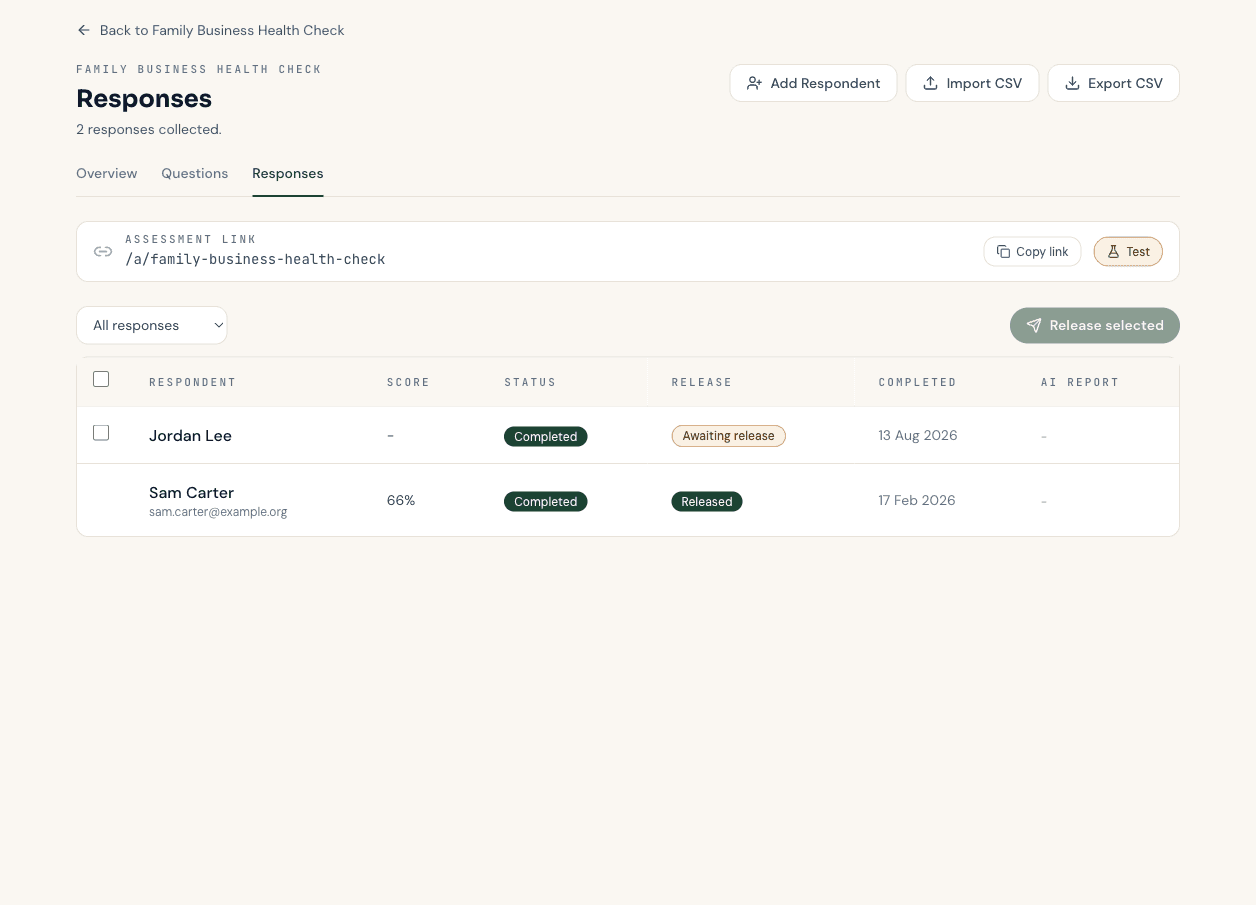
- Copy link shares the public assessment link - no account needed at the other end.
- CSV import takes names and emails, can label the whole batch as an intake, and reports exactly what was imported or skipped.
- Send reminders chases unfinished respondents without rebuilding the list by hand.
Video walkthrough in production - each section gets its embed as the recording lands.
- 05
Review, override and release results
The step that makes the result yours rather than the model’s. Nothing reaches a respondent until a person releases it - the gate is on by default and cannot be skipped.
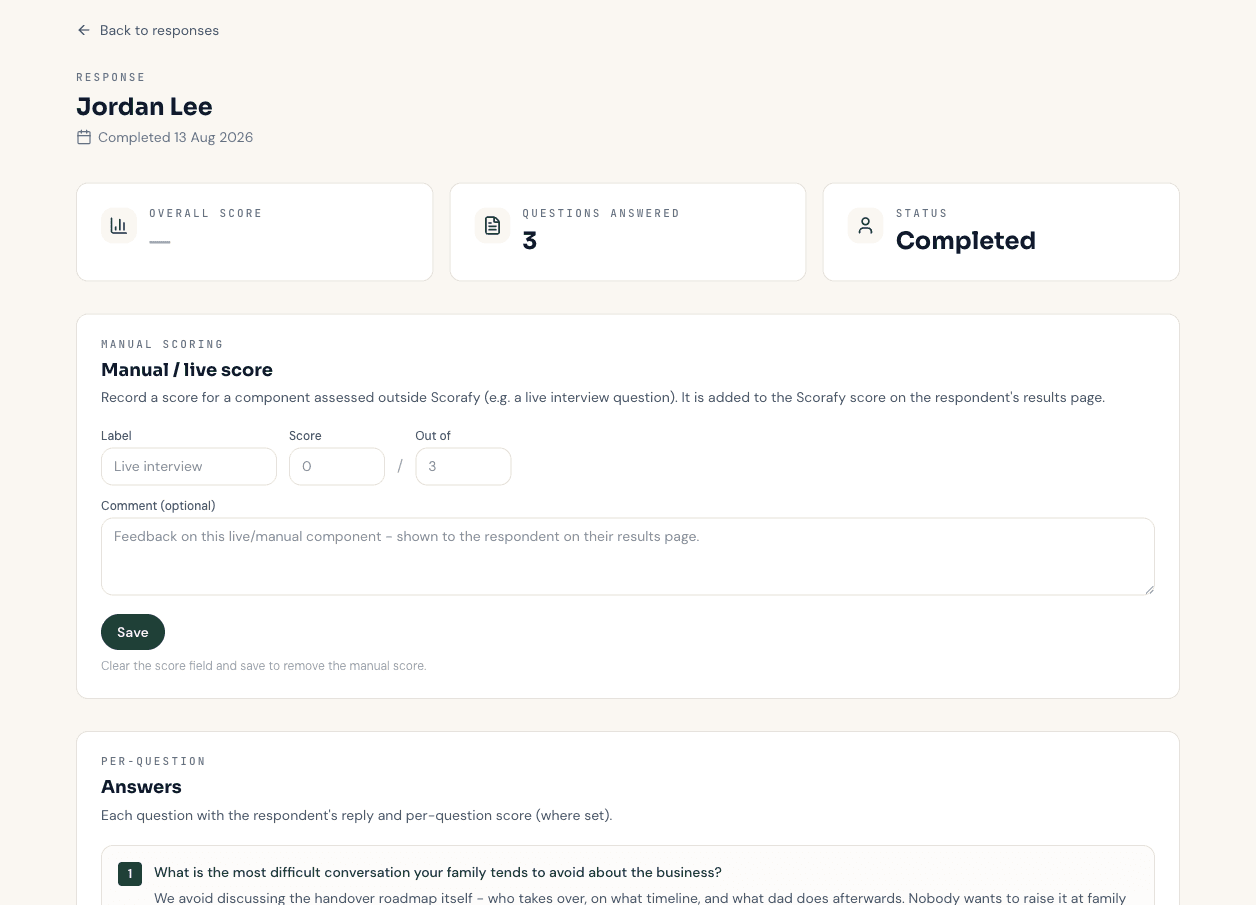
- Open a response to see every answer, the AI evaluation, and the evidence quoted behind each judgement.
- Override any score with a comment - the AI score stays on the record beside yours.
- Release one result from its page, or select several and release them together. Releasing is stamped, audited, and is the moment the respondent first sees anything.
Video walkthrough in production - each section gets its embed as the recording lands.
- 06
Cohort reports
Once a group has been assessed, the cohort report aggregates the individual evaluations into a single programme-level view.
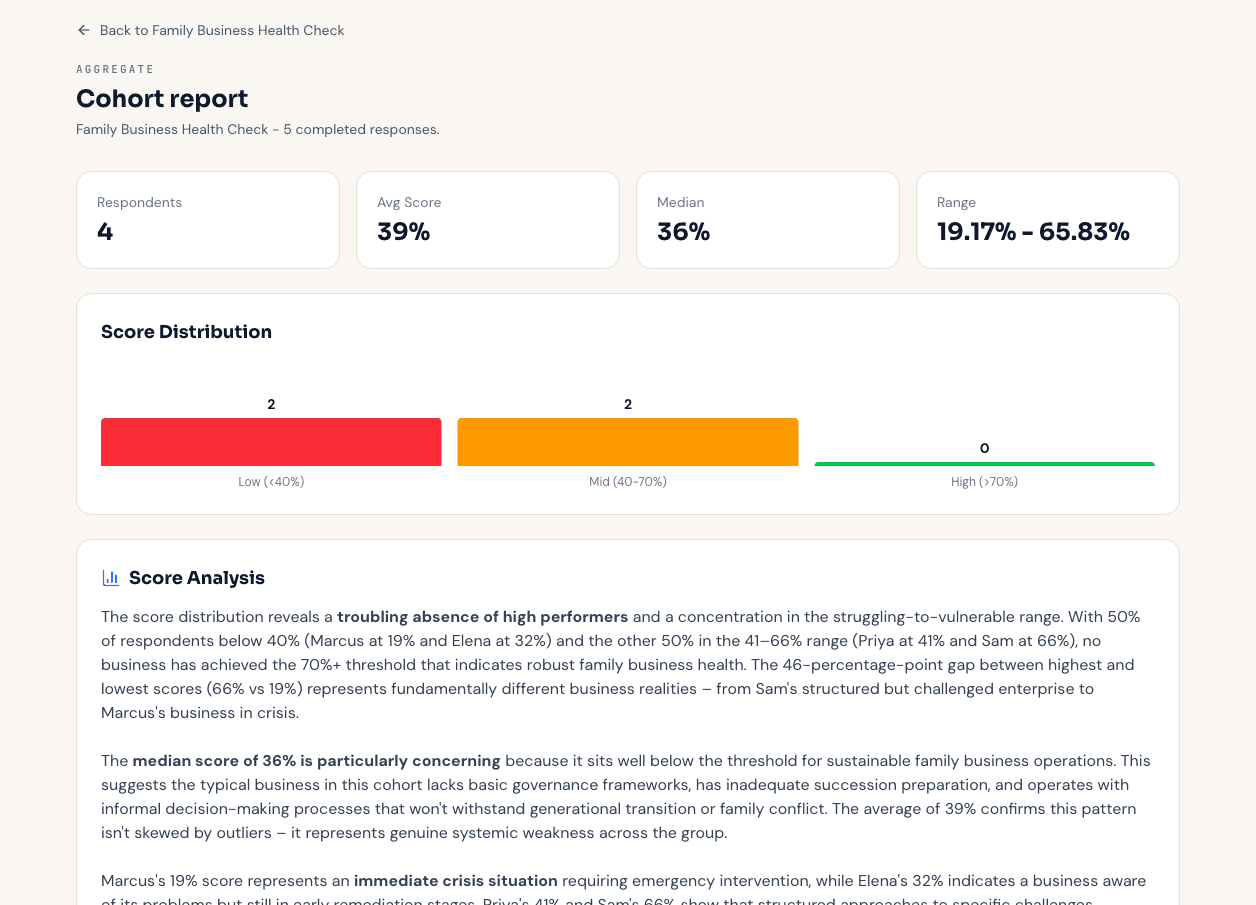
- Score distribution, the strengths that recur across the group, the gaps they share, and programme-level recommendations.
- Built from the individual evaluations rather than a separate scoring pass, so it agrees with the reports respondents received.
- Groups link related assessments together for reporting across a whole programme.
Video walkthrough in production - each section gets its embed as the recording lands.
- 07
Exports and integrations
Get the data out, or let another system pull it - exports on every response, webhooks and a read-only REST API for wiring Scorafy into what you already run.
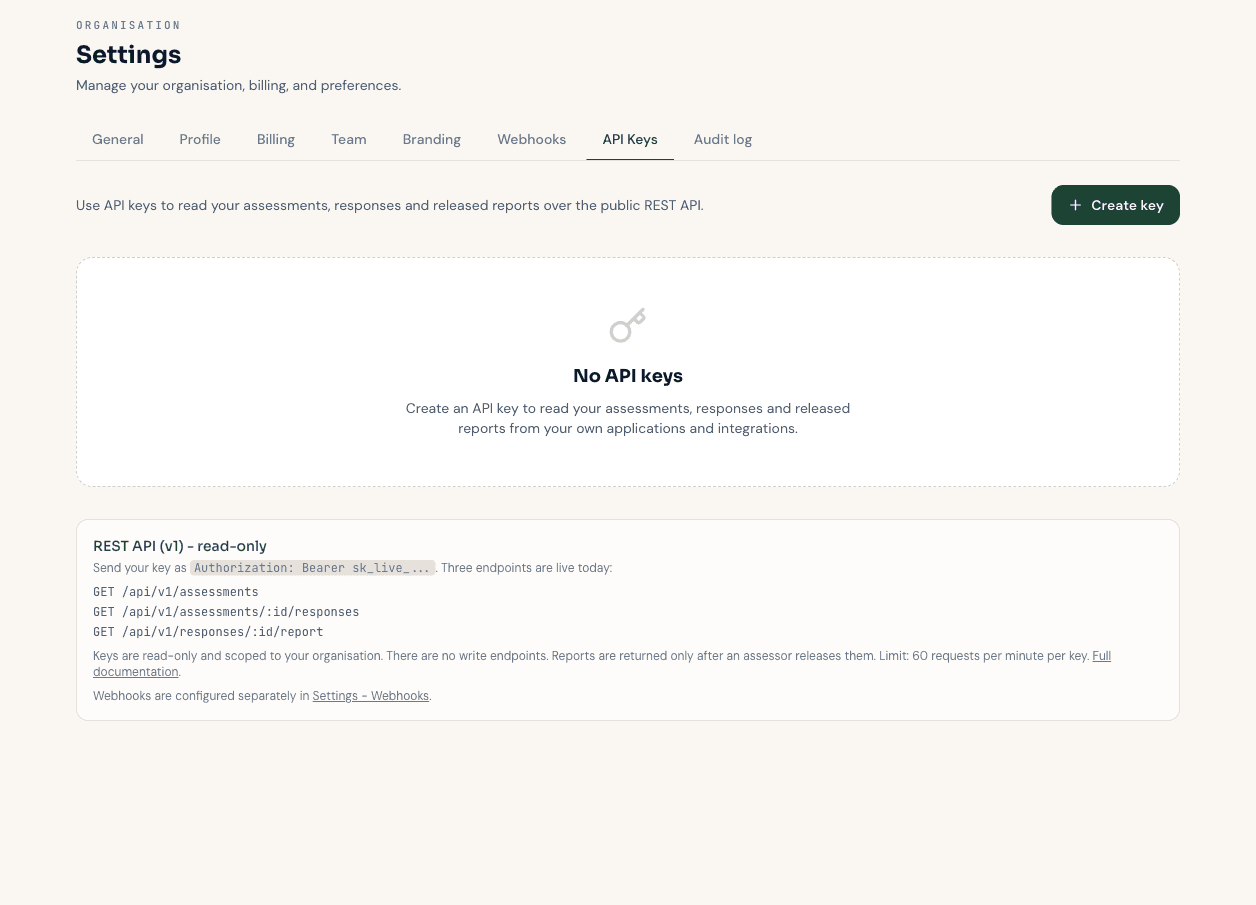
- Export responses as CSV, or any report as a branded PDF.
- Webhooks fire HMAC-signed POSTs for four events; report released fires only after an assessor signs off.
- API keys are scoped, hashed at rest, and revocable at any time.
Video walkthrough in production - each section gets its embed as the recording lands.
Deeper reading
The assurance library
Longer reference guides on running AI-assisted assessment defensibly - written for anyone doing it, whichever tool they use.
- What an audit trail for AI-assisted assessment must contain
- How to measure whether AI grading agrees with your assessors
- AI assessment and the EU AI Act
- What human-in-the-loop assessment actually means
- What to look for in AI assessment software
- How RTOs use AI for assessment marking
- The best AI rubric grading tools in 2026, compared honestly
Work through it on a real assessment
The free plan carries one live assessment and ten AI evaluations a month - enough to take a real cohort through the whole loop before you decide anything.